SSD vs. HDD: What to Know Before Upgrading
FX TechPulse Editorial · October 24, 2026
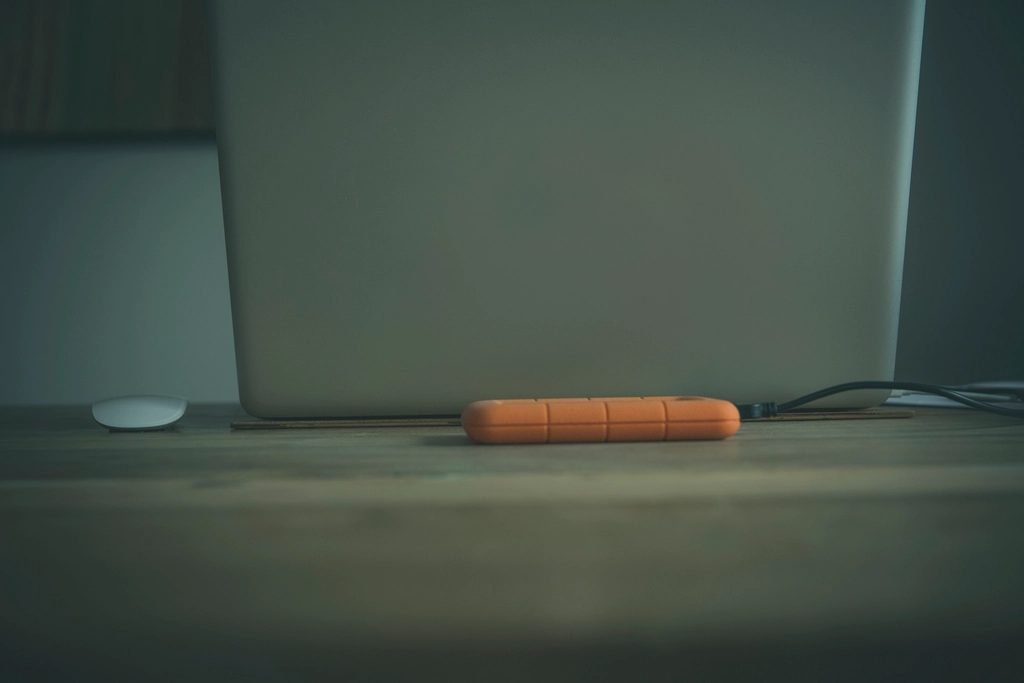
If your computer feels slow to start and open programs, the storage drive may be the bottleneck. Replacing a traditional hard drive with a solid-state drive often makes a dramatic difference.
The difference in one minute
A hard disk drive (HDD) stores data on spinning magnetic platters read by a moving head. A solid-state drive (SSD) uses flash memory chips with no moving parts. That makes SSDs much faster, quieter, cooler and more resistant to shocks.
Why SSDs feel faster
Booting, launching apps and opening large files all depend on how quickly the drive can find and read data. SSDs do this almost instantly, so the whole system feels more responsive, even with an older processor.
When an HDD still makes sense
HDDs cost less per terabyte, so they are still used for large archives, backups and media libraries where speed matters less.
Before you upgrade
- Check which type your computer uses: 2.5-inch SATA or M.2.
- Pick a capacity with room to spare. 500 GB to 1 TB suits most people.
- Back up everything first.
- Decide whether to clone your old drive or start with a fresh installation.
- Look up your model's guide, as some laptops have limited access.
Lifespan and care
SSDs wear after many writes, but for normal use they last years. Keep around 10 to 20 percent free space, avoid unnecessary full-disk writes, and keep backups, because any drive can fail.
Is it worth it?
For a computer under about eight years old, almost always yes. An SSD upgrade is one of the best value improvements you can make.
About this article. Written and reviewed by the FX TechPulse editorial team. General information only, not professional advice. Read our editorial policy. Spotted a mistake? Tell us.